UTM Templates
UTM Templates allow you to save predefined sets of UTM parameters that you can quickly apply to your links. This ensures consistency across your marketing campaigns and saves time when creating new tracking links.
Creating a UTM Template
To create a new UTM Template, navigate to the UTM Templates section in your dashboard and click Create Template.
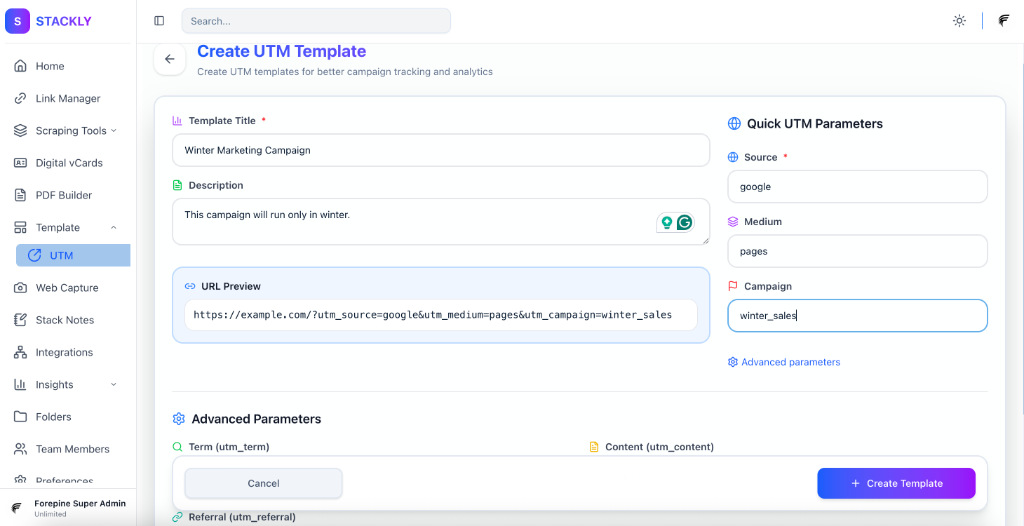
You will need to provide the following information:
Template Details
| Field | Requirement | Description |
|---|---|---|
| Title | Required | A unique name for your template. Must be between 2 and 100 characters. |
| Description | Optional | A brief description of what this template is used for. Maximum 200 characters. |
UTM Parameters
All UTM parameters are optional but recommended for effective tracking. Each field has a maximum limit of 100 characters.
| Field | Parameter | Description | Example |
|---|---|---|---|
| Source | utm_source | The referrer: (e.g. google, newsletter) | google, newsletter |
| Medium | utm_medium | Marketing medium: (e.g. cpc, banner, email) | cpc, email |
| Campaign | utm_campaign | Product, promo code, or slogan | spring_sale, promo_code |
| Term | utm_term | Identify the paid keywords | running+shoes |
| Content | utm_content | Use to differentiate ads | logolink, textlink |
| Referral | utm_referral | Custom referral parameter | ref_code_123 |
Using a UTM Template
Once you have created a template, you can select it when creating a new short link. The UTM parameters from the template will be automatically appended to your destination URL.
[!TIP] You can override specific parameters from a template if needed when creating a specific link.