Digital vCards
Create stunning, interactive digital business cards that make networking effortless. Share your contact information, social media profiles, and custom links in one beautiful, mobile-friendly page.
What is a Digital vCard?
A Digital vCard (also known as Bio Page) is your modern business card on the web. Instead of exchanging physical cards, share a single link that contains all your professional information. Visitors can save your contact details directly to their phone with one tap, and you get real-time analytics on who's viewing your card.
Create Your Digital vCard
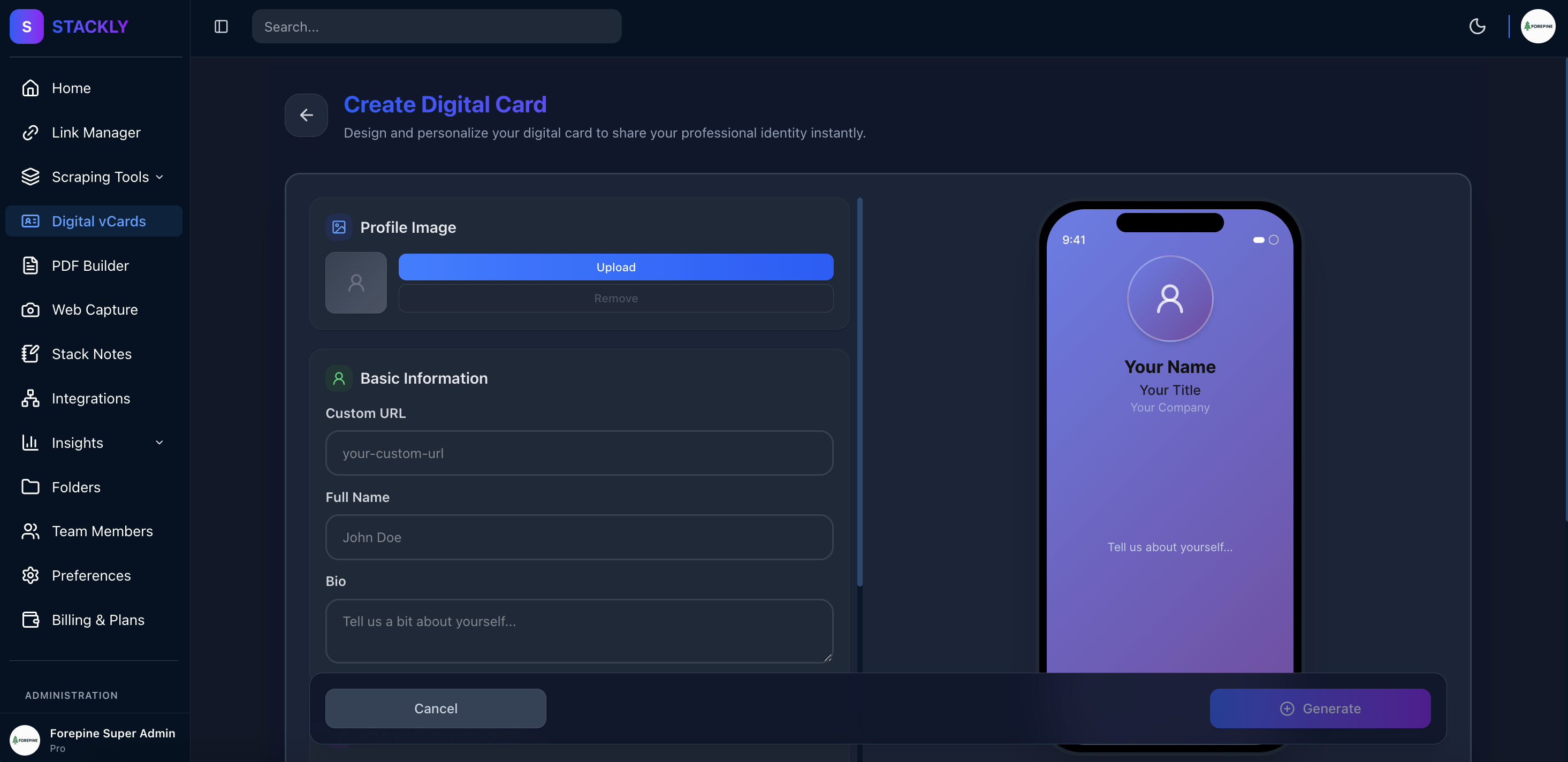
Basic Information
1. 👤 Name
Required
Your full name or business name that will be displayed prominently on your vCard.
Example:
John Smith
2. 🔑 Custom Key (URL Slug)
Required
Create a unique, memorable URL for your vCard. This becomes your shareable link.
Example:
john-smith → stackly.in/john-smith
3. 🖼️ Profile Avatar
Optional
Upload a professional photo or logo that represents you or your business.
Supported formats: JPG, PNG, WebP
Recommended size: 400x400px
4. 💼 Designation
Optional
Your job title or professional role.
Example:
Senior Product Manager
5. 🏢 Company Name
Optional
The organization you represent.
Example:
Stackly Technologies
6. 📝 Bio
Optional
A brief description about yourself or your business. Keep it concise and engaging.
Example:
Passionate about building products that make a difference.
10+ years in tech, coffee enthusiast, and lifelong learner.
7. 🌐 Website
Optional
Your personal website or company website URL.
Example:
https://www.example.com
Contact Information
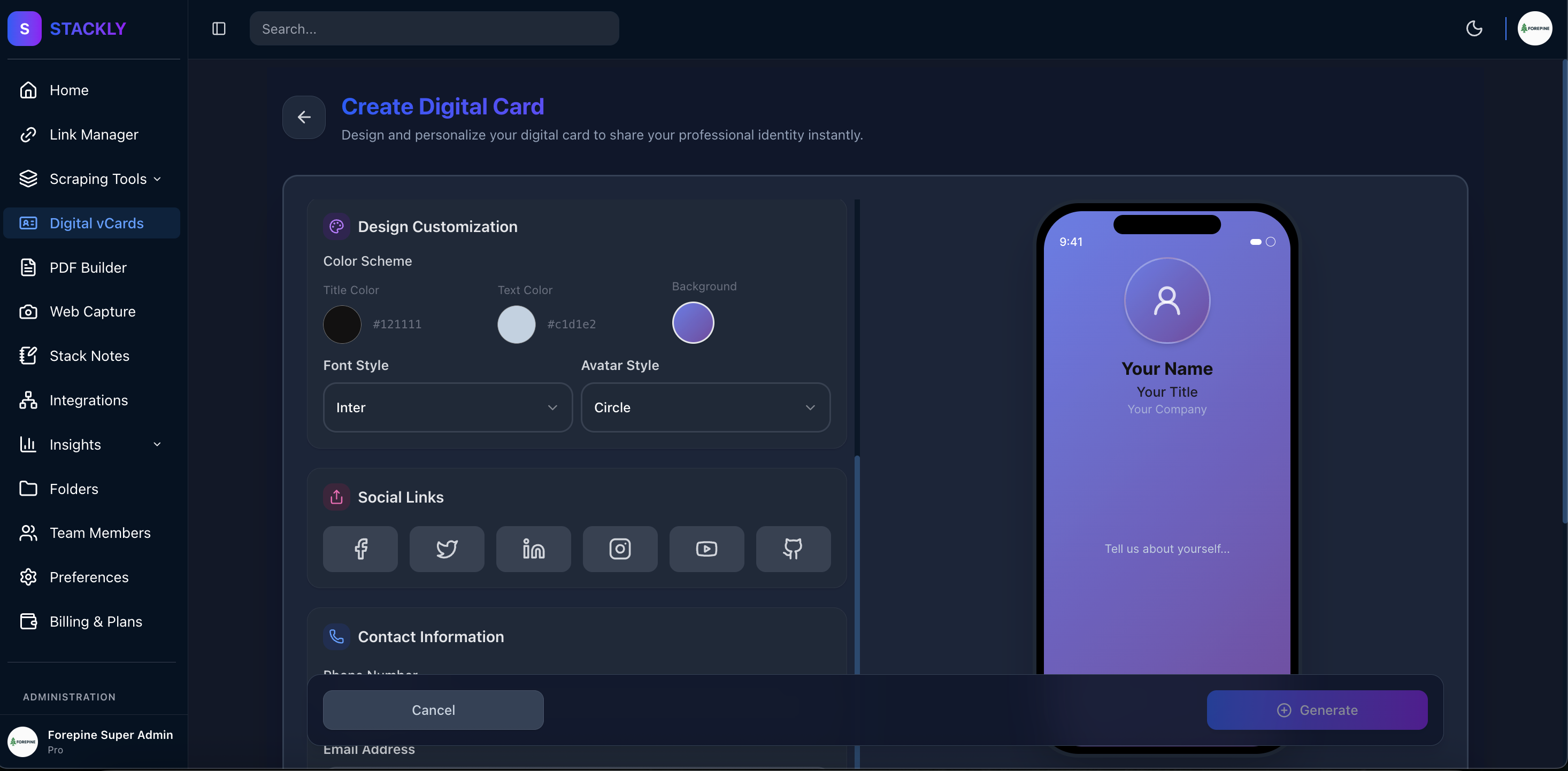
Make it easy for people to reach you by adding multiple contact methods.
📞 Phone Number
Add your primary phone number with country code.
Example:
Country Code: +1
Phone: 5551234567
📠 Landline (Optional)
Add a business landline number if applicable.
Example:
5559876543
📧 Email Address
Your primary email for professional contact.
Example:
Social Media Profiles
Connect all your social media accounts to give visitors multiple ways to follow and engage with you.
Supported Platforms:
- 📸 Instagram - Your Instagram handle or profile URL
- 👍 Facebook - Your Facebook profile or page URL
- 🎥 YouTube - Your YouTube channel URL
- 🐦 Twitter/X - Your Twitter handle or profile URL
- 💼 LinkedIn - Your LinkedIn profile URL
- 💻 GitHub - Your GitHub profile URL
Example:
Instagram: @johnsmith
LinkedIn: linkedin.com/in/johnsmith
GitHub: github.com/johnsmith
Custom Links (Link Tree)
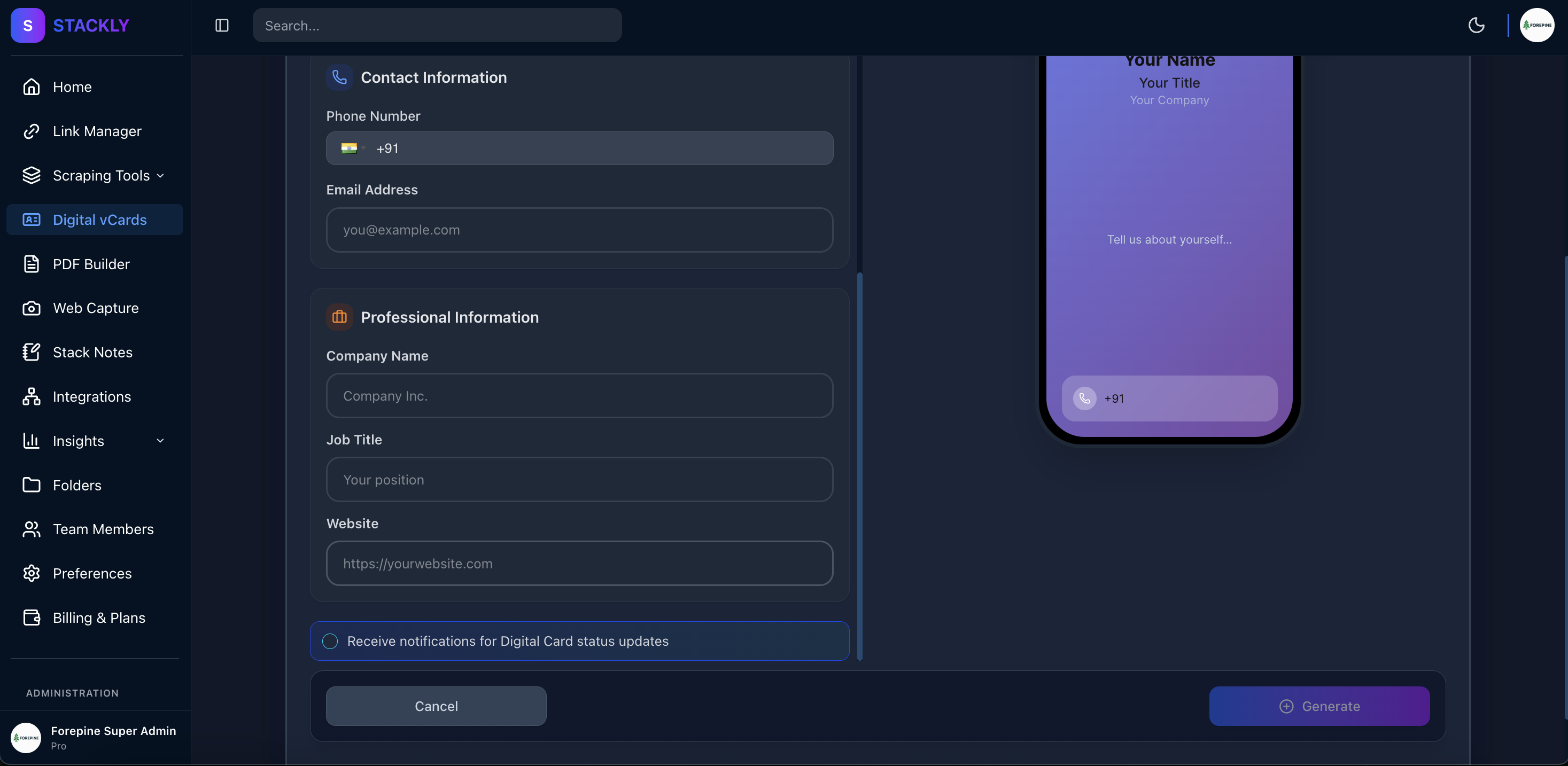
Add unlimited custom links to showcase your content, products, or services. Perfect for:
- Portfolio projects
- Blog articles
- Product pages
- Booking links
- Download resources
- Affiliate links
Link Properties:
📌 Title
The display text for your link button.
Example:
View My Portfolio
🔗 URL
The destination URL when clicked.
Example:
https://portfolio.example.com
🎨 Icon (Optional)
Add an emoji or icon to make your link stand out.
Example:
💼 📱 🎯 🚀
👁️ Visibility
Toggle links on/off without deleting them.
📊 Order
Arrange links in your preferred order by dragging or setting priority.
Customization & Theming
Personalize your vCard's appearance to match your brand identity.
🎨 Theme Options
Background Color
Choose a background color that represents your brand.
Example:
#6366f1 (Indigo)
#ffffff (White)
#000000 (Black)
Avatar Shape
Select how your profile picture is displayed.
Options:
- Circle (Default)
- Square
- Rounded Square
Typography
Title Settings:
- Color - Color of your name/title
- Font - Font family for your name
Description Settings:
- Color - Color of your bio text
- Font - Font family for bio
Global Font:
- Overall font family for the entire card
Advanced Features
🔔 Real-time Alerts
Optional
Enable notifications to get instant alerts when someone views your vCard.
📌 Pin to Dashboard
Optional
Pin your most important vCard to the top of your dashboard for quick access.
🎯 Click Tracking
Automatically track every view of your vCard with detailed analytics:
- Total views count
- Click limit monitoring
- Visitor analytics
- Geographic data
- Device information
💾 Save to Contacts
Visitors can save your complete contact information to their phone's address book with a single tap. All your details are automatically formatted in vCard (.vcf) format.
📱 QR Code
Every vCard automatically generates a unique QR code that can be:
- Downloaded and printed
- Added to business cards
- Shared in presentations
- Displayed at events
🔗 Custom Domain
Premium Feature
Use your own domain instead of stackly.in for a fully branded experience.
Example:
john-smith.yourdomain.com
🏷️ Custom Branding
Watermark Customization:
- Default: "Stackly" watermark
- Premium: Remove watermark or add your own branding logo
Analytics Dashboard
Track the performance of your digital vCard with comprehensive analytics.
📊 Metrics Available:
- Total Views - How many times your vCard has been viewed
- Click Count - Track engagement with your links
- Geographic Data - See where your visitors are from
- Device Types - Desktop vs Mobile traffic
- Time Analytics - Peak viewing times
- Link Performance - Which custom links get the most clicks
- Contact Saves - How many people saved your contact info
🎯 Click Limits
Set optional view limits for your vCard:
- Default: 5 views (can be increased)
- Unlimited views available with premium plans
- Useful for event-specific cards or temporary sharing
Edit & Update Your vCard
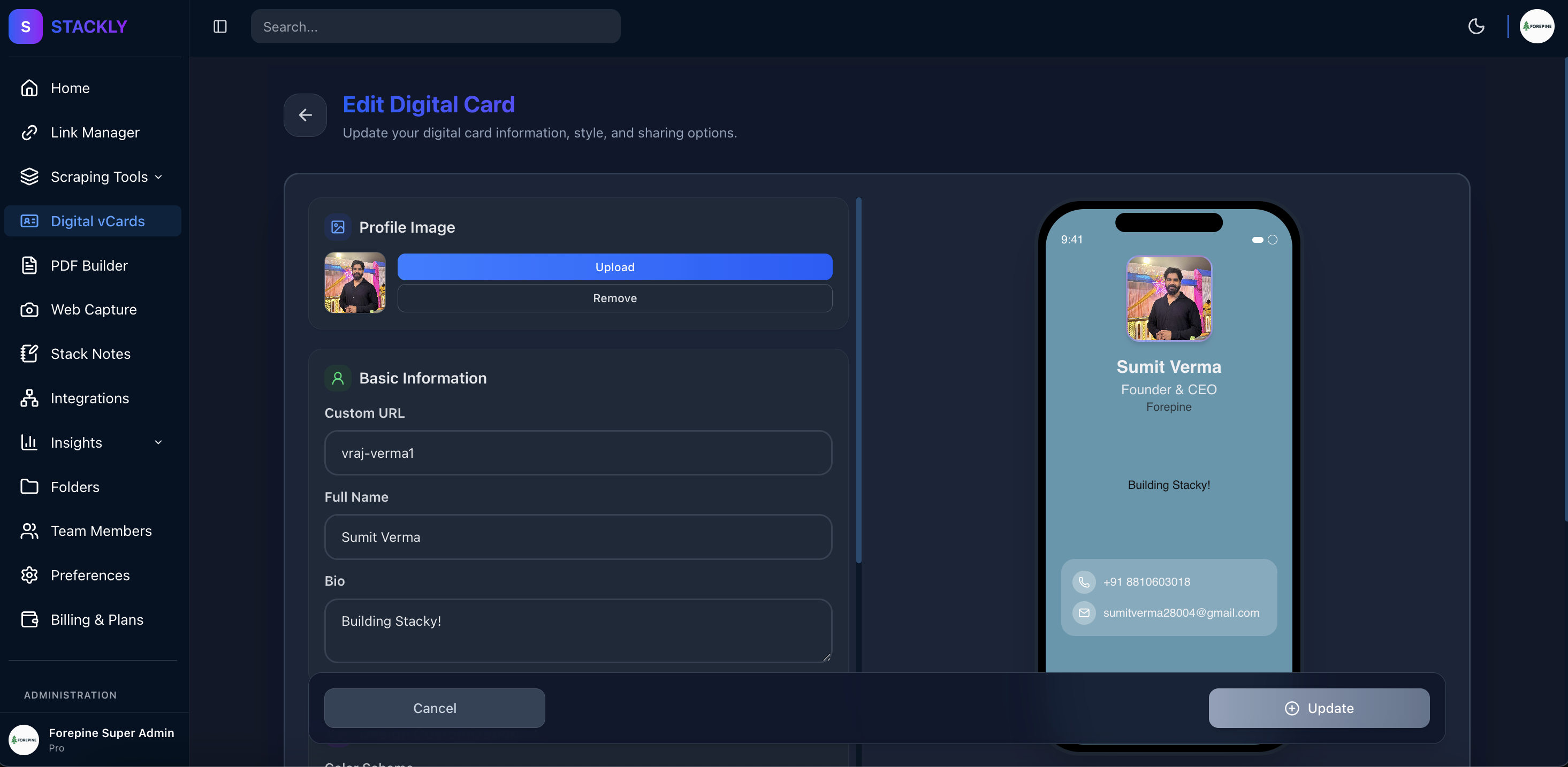
Your digital vCard is always evolving with you. Update your information anytime to keep your professional presence current and accurate.
How to Edit Your vCard
-
Access Your vCard
- Navigate to your vCards dashboard
- Click on the vCard you want to edit
- Or click the "Edit" button from the list view
-
Update Any Information
- Modify your name, bio, or contact details
- Change your profile picture
- Update social media links
- Add or remove custom links
- Adjust theme and styling
-
Save Changes
- All changes are saved automatically or with a single click
- Your vCard URL remains the same
- Updates are live immediately
What You Can Update
- ✏️ Basic Information - Name, designation, company, bio, website
- 📸 Profile Picture - Upload a new avatar anytime
- 📞 Contact Details - Phone, email, landline
- 🌐 Social Media - Add, remove, or update social profiles
- 🔗 Custom Links - Modify your link tree anytime
- 🎨 Theme & Design - Change colors, fonts, and styling
- ⚙️ Settings - Update click limits, alerts, and privacy options
Version History
Every time you update your vCard:
- Changes take effect immediately
- Your shareable link stays the same
- QR code remains valid
- Analytics continue tracking seamlessly
- No need to redistribute your link
Bulk Updates
If you have multiple vCards:
- Update common elements across cards
- Apply consistent branding
- Sync team member information
- Manage folder organization
Organizing Your vCards
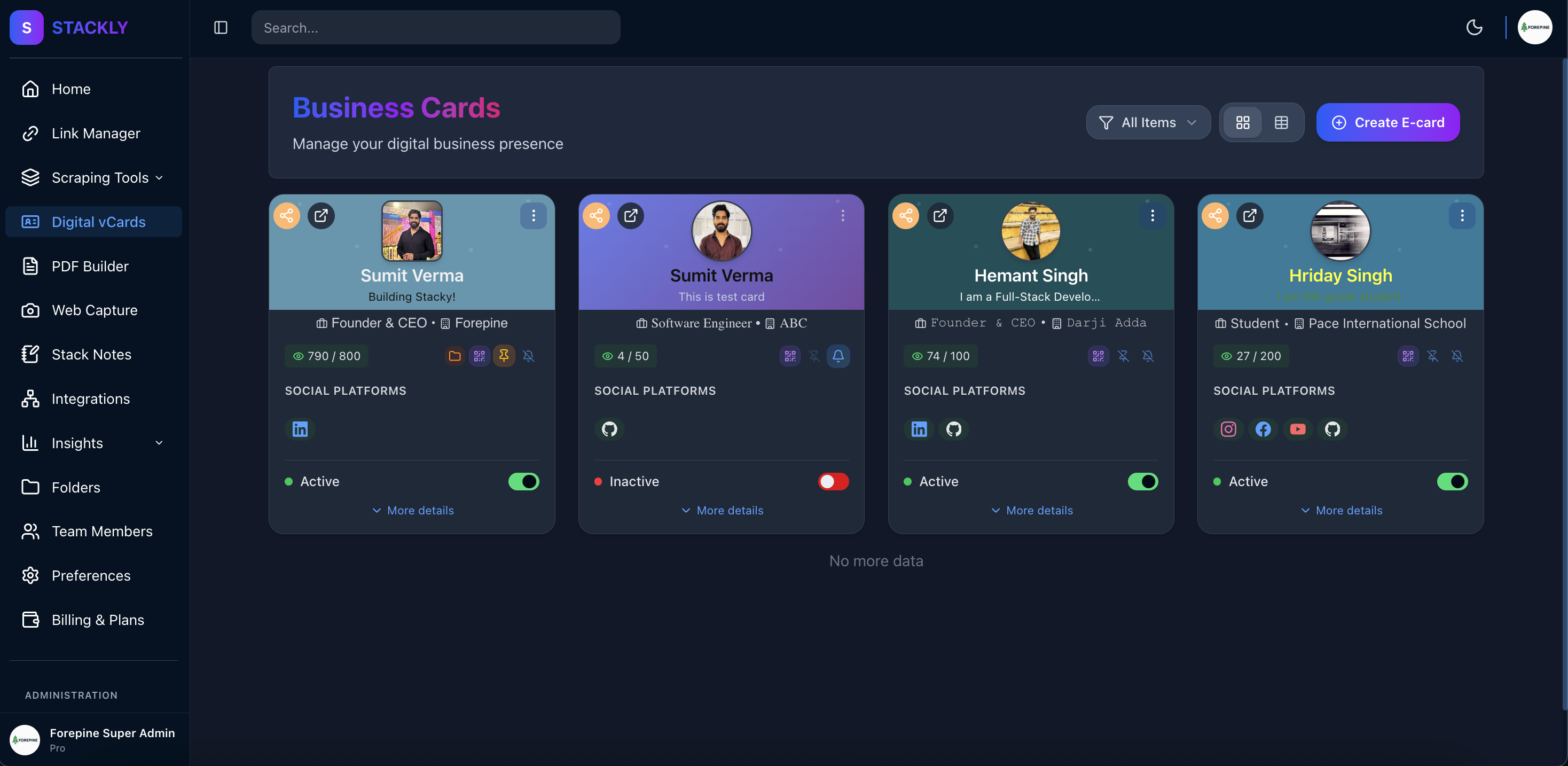
📁 Folders
Organize multiple vCards into folders for better management:
- Personal Cards
- Business Cards
- Event Cards
- Team Member Cards
🏷️ Status Management
Control vCard availability:
- Active - Publicly accessible
- Inactive - Temporarily disabled
- Draft - Work in progress
Use Cases
👔 Professional Networking
Replace traditional business cards with a dynamic digital version that's always up-to-date.
🎤 Events & Conferences
Share your contact info instantly with QR codes at speaking engagements or trade shows.
💼 Sales & Marketing
Include all your product links, social proof, and contact methods in one place.
🎨 Creators & Influencers
Showcase your content, social media, and monetization links in a beautiful bio page.
👥 Team Management
Create standardized vCards for all team members with consistent branding.
📧 Email Signatures
Link to your vCard in email signatures for a professional touch.
Best Practices
✅ Do's
- Keep it Updated - Regularly update your information
- Use Professional Photos - High-quality, clear profile pictures
- Prioritize Important Links - Put your most important links at the top
- Write Engaging Bios - Make your bio personal and memorable
- Test on Mobile - Ensure your card looks great on all devices
- Use Clear CTAs - Make your link titles action-oriented
❌ Don'ts
- Don't Overload - Too many links can overwhelm visitors
- Avoid Broken Links - Regularly check that all URLs work
- Don't Use Unprofessional Photos - Maintain a professional image
- Avoid Generic Slugs - Create memorable, branded URLs
- Don't Ignore Analytics - Use data to optimize your card
Getting Started
Ready to create your professional digital business card?
- Create Your vCard - Start building your digital business card
- Customize Your Design - Match your brand colors and style
- Add Your Links - Include all your important links and social profiles
- Share Your URL - Start networking with your new digital card
- Track Performance - Monitor views and engagement in real-time
FAQ
Can I have multiple vCards?
Yes! Create unlimited vCards for different purposes - personal, business, events, etc.
Can visitors save my contact to their phone?
Absolutely! Your vCard includes a "Save to Contacts" button that works on all devices.
Do I need to pay to remove the watermark?
The default "Stackly" watermark can be removed with a premium plan, or you can add your own branding logo.
Can I use my own domain?
Yes, custom domains are available as a premium feature.
Is there a limit on custom links?
No, you can add unlimited custom links to your vCard.
Can I see who viewed my vCard?
You can see analytics including view counts, geographic data, and device types. Individual visitor identification depends on your privacy settings and plan.
What happens when I reach the click limit?
You can increase or remove click limits at any time. Premium plans offer unlimited views.
Need Help?
- 📖 Browse our comprehensive documentation
- 💬 Join our community discussions
- 📧 Contact our support team
- 🐛 Report issues on GitHub
Transform your networking with Stackly Digital vCards! 🚀